Guide · 25 October 2026
How to connect Presentor to Zapier or Make.
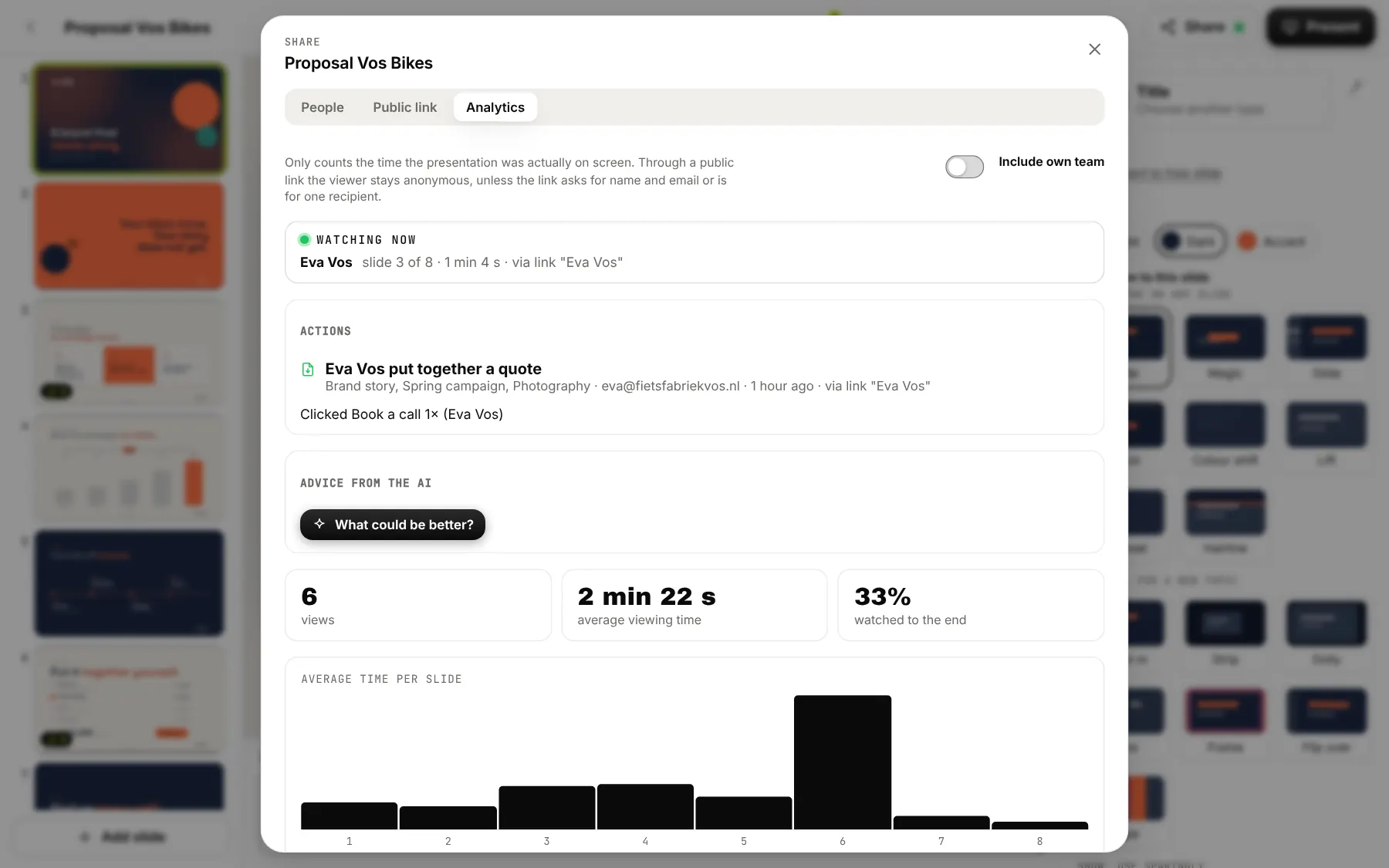
As soon as someone opens your presentation, agrees to something or goes quiet, Presentor can send a message to Zapier or Make. That puts a viewer in a Google Sheet, a note in your CRM or a task for your team. These are the steps, the fields of every message and the limits.
What you need
- A brand or company on Team where you are an admin. Webhooks are part of Team and live in Admin, on the Connections tab.
- An account with Zapier or Make. In Zapier that is the app Webhooks by Zapier with the event Catch Hook; according to Zapier it is not part of the free plan. In Make it is the module Custom webhook.
- A place for the data, such as a Google Sheet or your CRM.
There is no separate Presentor app in Zapier or Make, and you do not need one. Presentor sends a JSON message to an address, and Zapier and Make both have a general receiver for messages like that. If you use Teamleader, HubSpot or Pipedrive, look at the built-in CRM connection on the same tab first: it puts viewing data in your CRM as a note and a task by itself. Zapier and Make are for everything else.
What Presentor sends
For every event Presentor sends one POST request with a JSON message to the address you entered. Every message has the same outer shape:
id: the number of the event, starting with evt_.type: the kind of event, for examplelink.opened.created_at: the time in ISO 8601, in UTC.data: the details of the event. These differ per kind (see The nine events).
A field without a value is sent as null, so a key is never missing. Times inside data (started_at, last_at and last_view) are UTC in the form 2026-10-26 09:14:22, with a space and without a Z. The values of device (computer, telefoon or tablet) and of action.kind (afspraak, akkoord, peiling, download or offerte) are always Dutch, also when you use Presentor in English.
The Test button next to a webhook sends a message with type set to ping. That is not one of the nine events, but it shows that the connection works:
{
  "id": "evt_a3p8v6nzd",
  "type": "ping",
  "created_at": "2026-10-26T09:02:41.907Z",
  "data": {
    "workspace": { "id": "ws_h4n8c2xpv", "name": "Studio Noord" },
    "message": "Test van Presentor"
  }
}
Connecting with Zapier
- Create a new Zap in Zapier. Choose Webhooks by Zapier as the trigger and Catch Hook as the event. Leave Pick off a child key empty: then you keep
typeandcreated_attoo. - Copy the webhook URL that Zapier shows. It starts with https://hooks.zapier.com/hooks/catch/.
- In Presentor, open Admin, go to the Connections tab and find Webhooks. Paste the address. All events are ticked by default: leave only what you need. Every event has different fields, so a separate webhook and Zap per event makes mapping fields easier. Click Add connection.
- Presentor now shows a secret once, starting with whsec_. You only need it to verify the signature; Zapier does not ask for it. Keep it safe if you do verify.
- In the list, click Test next to the webhook. In Zapier click Test trigger: Zapier shows the test message. Nested fields get one name there with two underscores, such as
data__workspace__name. - If you want the fields of a real event, open a link to a presentation in a private window (for
link.opened) and click Test trigger in Zapier again. Pick the newest message. - Choose the action. Example with Google Sheets, action Create Spreadsheet Row: make columns such as Time, Presentation, Name, Email and Device, and pick the values
created_at,data__deck__title,data__viewer__name,data__viewer__emailanddata__viewer__device. - Test the action and turn the Zap on.
Example with a note in your CRM, for view.finished: find the contact on data__viewer__email and create a note with the name of the viewer (data__viewer__name), the viewing time (data__view__seconds), the presentation (data__deck__title) and how far the viewer got (data__view__furthest_slide of data__view__total_slides).
Connecting with Make
- Create a new scenario in Make. Choose Webhooks as the first module, then Custom webhook.
- Click Add, give the webhook a name (for example Presentor link.opened) and click Save. Then click Copy address to clipboard.
- Make now waits for a first message to work out the fields. Keep the window open, or click Run once later.
- In Presentor, open Admin, go to the Connections tab and find Webhooks. Paste the address, pick the event you want to receive and click Add connection. Then click Test next to the webhook.
- Make reports that the data structure was determined (Successfully determined). If you want the fields of a real event, click Redetermine data structure in the module, open a link to a presentation in a private window and let Make receive the message.
- Add the next module, for example Google Sheets with Add a row. The fields of the message are in the list; nested fields sit under each other. Map to your columns, among others,
created_at,data>deck>title,data>viewer>nameanddata>viewer>email. - Click Run once, open a link again and check that a row appears in your Google Sheet. Then turn the scenario on with the switch.
Make reads the fields from one example message and afterwards only knows those fields. Another event has other fields, so in Make too, create a separate webhook and scenario per event.
Example with a note in your CRM, for view.finished: find the contact on data > viewer > email and create a note with the viewing time (data > view > seconds), the presentation and the slides that were watched the longest (data > view > top).
The nine events
For every event this shows when it arrives and what the message looks like. The examples follow what Presentor really sends; only the values are made up. In every message about a presentation, workspace is the brand, deck the presentation and link the link the viewer opened. For a public link, link.recipient is null. What to do with viewing data is covered in the guide Know whether your presentation was watched.
link.opened: someone opens a link
Arrives every time someone opens a link to a presentation and starts watching, public links included. Editors who watch inside the app do not count. The viewer is anonymous (name and email are null) unless the link asks for a name and email address or was made for one recipient. viewer.forwarded is true when Presentor suspects the link was forwarded.
{
  "id": "evt_x7k2m9qa3",
  "type": "link.opened",
  "created_at": "2026-10-26T09:14:22.418Z",
  "data": {
    "workspace": { "id": "ws_h4n8c2xpv", "name": "Studio Noord" },
    "deck": { "id": "dk_m3t7q9bw2", "title": "Website proposal for Vermeulen" },
    "link": {
      "id": "ln_Ab3dE5fGh7",
      "label": "Sanne de Vries",
      "recipient": "sanne@vermeulen.nl"
    },
    "viewer": {
      "name": "Sanne de Vries",
      "email": "sanne@vermeulen.nl",
      "device": "computer",
      "forwarded": false
    },
    "view": { "id": "vw_4k8m2x7q9c1d" }
  }
}
Can be null: link.recipient, viewer.name, viewer.email.
link.forwarded: the link was forwarded
Arrives straight after link.opened, with exactly the same data, but only when the viewer entered a different email address from the recipient of the link. A different browser alone is not a reason: viewer.forwarded is then true on link.opened, but there is no link.forwarded.
{
  "id": "evt_r5t9c4wby",
  "type": "link.forwarded",
  "created_at": "2026-10-26T11:40:08.653Z",
  "data": {
    "workspace": { "id": "ws_h4n8c2xpv", "name": "Studio Noord" },
    "deck": { "id": "dk_m3t7q9bw2", "title": "Website proposal for Vermeulen" },
    "link": {
      "id": "ln_Ab3dE5fGh7",
      "label": "Sanne de Vries",
      "recipient": "sanne@vermeulen.nl"
    },
    "viewer": {
      "name": "Mark Jansen",
      "email": "mark.jansen@vermeulen.nl",
      "device": "telefoon",
      "forwarded": true
    },
    "view": { "id": "vw_h7d2q5m8x3rn" }
  }
}
Can be null: link.recipient, viewer.name.
link.stalled: a deal has stalled
A link for one recipient has gone quiet: the recipient has not looked for a while, or never opened the link. Presentor checks this every quarter of an hour. You set the threshold in Admin, under Sales, Deal stalled: after 3, 7 (default), 14 or 30 days, or off. It arrives once per link, until the recipient looks again. It applies to links with a recipient that are not revoked or expired and were made less than 120 days ago.
{
  "id": "evt_k8w2f5ctm",
  "type": "link.stalled",
  "created_at": "2026-10-26T08:15:04.120Z",
  "data": {
    "workspace": { "id": "ws_h4n8c2xpv", "name": "Studio Noord" },
    "deck": { "id": "dk_m3t7q9bw2", "title": "Website proposal for Vermeulen" },
    "link": {
      "id": "ln_Ab3dE5fGh7",
      "label": "Sanne de Vries",
      "recipient": "sanne@vermeulen.nl"
    },
    "viewer": { "email": "sanne@vermeulen.nl", "name": "Sanne de Vries" },
    "stall": { "days": 7, "last_view": "2026-10-18 14:02:11", "views": 2 }
  }
}
stall.days counts from the last time the recipient looked, or from the day the link was made if they never did. stall.views is the number of viewing sessions. Can be null: viewer.name and stall.last_view (never looked).
view.finished: a viewing session is over
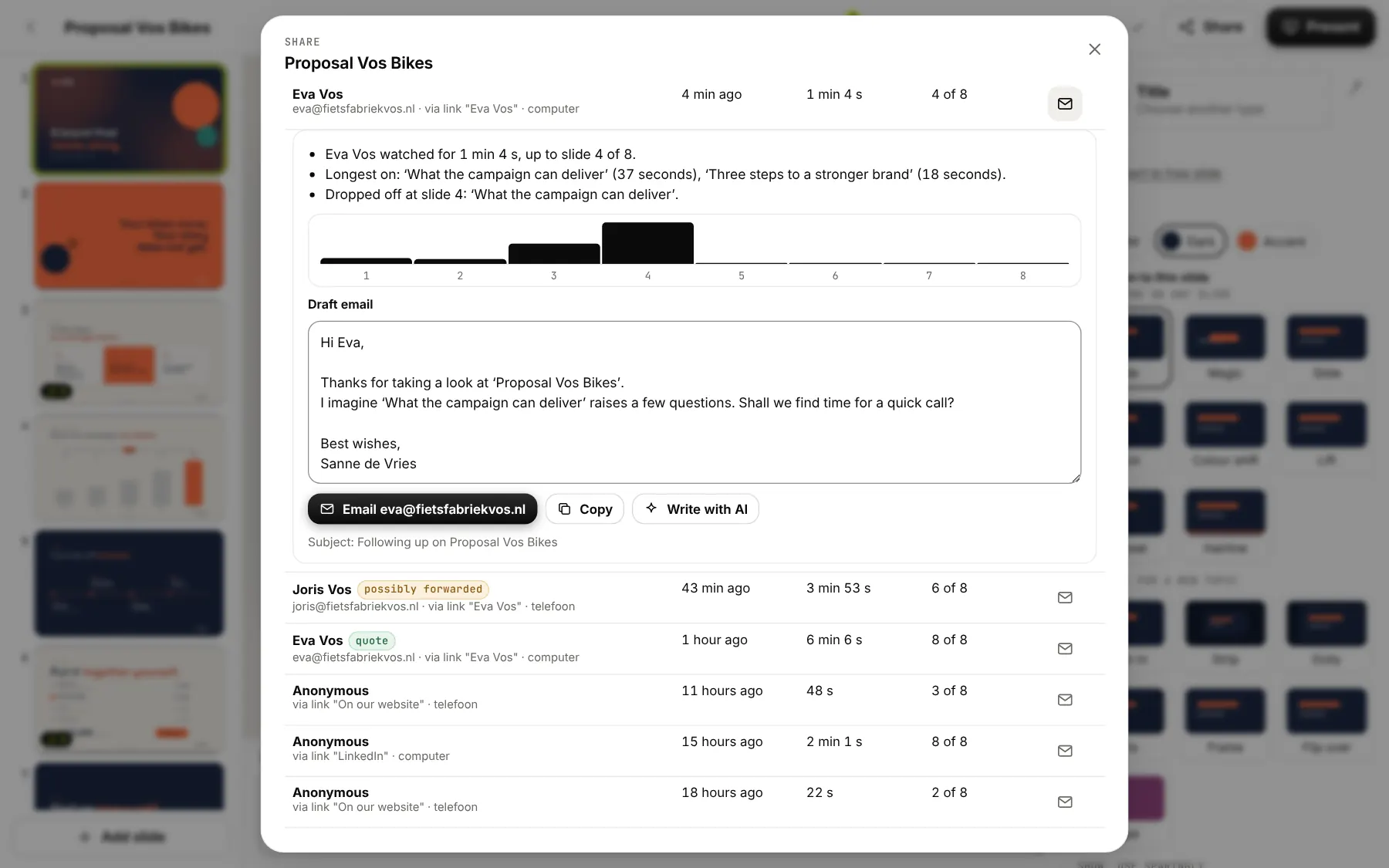
The viewer did nothing for half an hour. Presentor checks every quarter of an hour, so the message arrives between half an hour and three quarters of an hour after the last activity. It covers sessions through a link with at least one second of viewing time, from the past day, and it arrives once per session. This is the message for a note in your CRM.
{
  "id": "evt_d6n3h9sqe",
  "type": "view.finished",
  "created_at": "2026-10-26T09:52:03.221Z",
  "data": {
    "workspace": { "id": "ws_h4n8c2xpv", "name": "Studio Noord" },
    "deck": { "id": "dk_m3t7q9bw2", "title": "Website proposal for Vermeulen" },
    "link": {
      "id": "ln_Ab3dE5fGh7",
      "label": "Sanne de Vries",
      "recipient": "sanne@vermeulen.nl"
    },
    "viewer": {
      "name": "Sanne de Vries",
      "email": "sanne@vermeulen.nl",
      "device": "computer",
      "forwarded": false
    },
    "view": {
      "id": "vw_4k8m2x7q9c1d",
      "seconds": 154,
      "furthest_slide": 6,
      "total_slides": 14,
      "seconds_per_slide": {
        "s_k2m8x4qw7": 18,
        "s_p9d3v6ht2": 41,
        "s_b5n7c2yr8": 74,
        "s_w3h6t9zc4": 12,
        "s_f8j2r5vn6": 9
      },
      "top": [
        { "title": "Investment", "seconds": 74 },
        { "title": "Planning and delivery", "seconds": 41 },
        { "title": "Our approach", "seconds": 18 }
      ],
      "started_at": "2026-10-26 09:14:22",
      "last_at": "2026-10-26 09:19:34"
    }
  }
}
seconds is the viewing time in seconds. furthest_slide is the highest slide number (from 1) that was on screen and total_slides the number of slides the link shows. seconds_per_slide gives the seconds per slide, with the slide id as the key. top holds the three slides that were watched the longest (only slides with at least 5 seconds), with the title as the viewer saw it; the list can be empty. started_at and last_at are UTC. Can be null: viewer.name, viewer.email.
action.created: a viewer does something on an action slide
action.kind is afspraak (the viewer wants to book a call), akkoord (agrees), peiling (answers a question), download (downloads the pdf) or offerte (puts together a quote). Action slides are part of Team.
{
  "id": "evt_m4z7b2xjp",
  "type": "action.created",
  "created_at": "2026-10-26T09:17:45.372Z",
  "data": {
    "workspace": { "id": "ws_h4n8c2xpv", "name": "Studio Noord" },
    "deck": { "id": "dk_m3t7q9bw2", "title": "Website proposal for Vermeulen" },
    "link": {
      "id": "ln_Ab3dE5fGh7",
      "label": "Sanne de Vries",
      "recipient": "sanne@vermeulen.nl"
    },
    "action": {
      "kind": "akkoord",
      "slide": { "id": "s_c4v8n2kx5", "title": "Agree to the proposal" },
      "choice": null,
      "label": null,
      "amount": null,
      "name": "Sanne de Vries",
      "email": "sanne@vermeulen.nl",
      "forwarded": false,
      "view_id": "vw_4k8m2x7q9c1d"
    }
  }
}
For a poll, choice is the number of the chosen answer (from 0), otherwise null; label is then the text of that answer. For a quote, label is the choice with the total and amount the total as a number in the unit of the slide (24400 is € 24,400, not cents). For the other kinds label and amount are null. This is what action looks like for a quote:
{
  "action": {
    "kind": "offerte",
    "slide": { "id": "s_c4v8n2kx5", "title": "Agree to the proposal" },
    "choice": null,
    "label": "Website, Maintenance · € 24,400 excluding VAT",
    "amount": 24400,
    "name": "Sanne de Vries",
    "email": "sanne@vermeulen.nl",
    "forwarded": false,
    "view_id": "vw_4k8m2x7q9c1d"
  }
}
Can be null: action.name, action.email, action.view_id (the viewing session is not known), link.recipient.
room.opened: a client opens a room
A client opens a room. An editor of the brand who looks at the room does not count, and the same browser within half an hour is the same visit. Rooms are part of Team.
{
  "id": "evt_q9s5g3vyc",
  "type": "room.opened",
  "created_at": "2026-10-27T13:05:19.044Z",
  "data": {
    "workspace": { "id": "ws_h4n8c2xpv", "name": "Studio Noord" },
    "room": { "id": "rm_t6w3k9ydh", "title": "Working with Vermeulen" },
    "viewer": { "name": "Sanne de Vries", "email": "sanne@vermeulen.nl" },
    "view": { "id": "rv_Kd83mPq2xZ" }
  }
}
Can be null: viewer.name, viewer.email.
room.message: a client sends a message
A client sends a question or message in the room. message.body is the text, up to 2000 characters.
{
  "id": "evt_t2c8x6hwa",
  "type": "room.message",
  "created_at": "2026-10-27T13:21:57.810Z",
  "data": {
    "workspace": { "id": "ws_h4n8c2xpv", "name": "Studio Noord" },
    "room": { "id": "rm_t6w3k9ydh", "title": "Working with Vermeulen" },
    "message": {
      "id": "rb_q4m7x2ncv",
      "name": "Sanne de Vries",
      "email": "sanne@vermeulen.nl",
      "body": "Can we call on Thursday about the planning?"
    },
    "view": { "id": "rv_Kd83mPq2xZ" }
  }
}
Can be null: message.email, view.id.
room.step: a client ticks off a step
A client ticks off one of their own steps in the room. The message arrives when a step goes from not done to done, not on a second click on a step that is already done.
{
  "id": "evt_w7j4n9fkr",
  "type": "room.step",
  "created_at": "2026-10-27T13:34:30.296Z",
  "data": {
    "workspace": { "id": "ws_h4n8c2xpv", "name": "Studio Noord" },
    "room": { "id": "rm_t6w3k9ydh", "title": "Working with Vermeulen" },
    "step": { "id": "ri_h8d2f5kqw", "title": "Send the logo and brand files" },
    "viewer": { "name": "Sanne de Vries", "email": "sanne@vermeulen.nl" },
    "view": { "id": "rv_Kd83mPq2xZ" }
  }
}
Can be null: viewer.name, viewer.email, view.id.
stand.lead: a visitor leaves their details
A visitor to a trade show stand leaves their details, on the screen of the stand or through the QR code on their own phone. lead.source is scherm (screen) or telefoon (phone). Trade show mode is part of Enterprise.
{
  "id": "evt_b5v2m8drx",
  "type": "stand.lead",
  "created_at": "2026-10-28T15:48:12.503Z",
  "data": {
    "workspace": { "id": "ws_h4n8c2xpv", "name": "Studio Noord" },
    "stand": { "id": "st_c5r9v3mxa", "title": "Dutch Design Week stand" },
    "lead": {
      "id": "sl_w2j6n8phq",
      "name": "Pieter Bakker",
      "email": "pieter@bakker-interieurbouw.nl",
      "company": "Bakker Interieurbouw",
      "question": "Could you give a demo for our team?",
      "item_id": "si_g7b4t2ndz",
      "item_title": "Product film 2026",
      "source": "telefoon"
    }
  }
}
Can be null: lead.company, lead.question, lead.item_id, lead.item_title (the visitor did not choose an item from the playlist).
Verifying the signature
Presentor signs every message to a regular webhook. The header Presentor-Signature holds t=<time>,v1=<signature>. The time is the number of seconds since 1 January 1970 (UTC). The signature is the HMAC-SHA256 of the text <time>.<body>, in hexadecimal, with the secret (whsec_) as the key. You work out the same value and compare.
- Use the body exactly as you received it. If you parse the JSON and format it again, spaces and order change, and the signature no longer matches.
- Compare in constant time (in Node.js
timingSafeEqual). - Check the time too. Reject a message older than five minutes, so nobody can replay an intercepted message later.
const { createHmac, timingSafeEqual } = require('node:crypto');

// rawBody: the text as received, unchanged.
// header: the value of Presentor-Signature.
function checkPresentor(rawBody, header, secret) {
  const entries = String(header || '').split(',').map((p) => p.trim().split('='));
  const parts = Object.fromEntries(entries);
  if (!parts.t || !parts.v1) return false;
  // older than 5 minutes: reject
  if (Math.abs(Date.now() / 1000 - Number(parts.t)) > 300) return false;
  const signed = parts.t + '.' + rawBody;
  const expected = createHmac('sha256', secret).update(signed).digest('hex');
  const a = Buffer.from(expected);
  const b = Buffer.from(parts.v1);
  return a.length === b.length && timingSafeEqual(a, b);
}
In an Express server you use it like this:
const express = require('express');
const app = express();
const SECRET = process.env.PRESENTOR_SECRET;

// express.raw, not express.json: the signature covers the unchanged text.
app.post('/presentor', express.raw({ type: 'application/json' }), (req, res) => {
  const raw = req.body.toString('utf8');
  const signature = req.get('Presentor-Signature');
  if (!checkPresentor(raw, signature, SECRET)) return res.sendStatus(401);
  const event = JSON.parse(raw);
  console.log(event.type, event.data.deck && event.data.deck.title);
  res.sendStatus(200); // answer quickly: Presentor waits 5 seconds
});
In Zapier and Make you can skip the check, and most people do. Then say it plainly: the address is the only protection. Anyone who knows the address of your Zap or scenario can send messages to it that look like they come from Presentor. So share the address with nobody. If in doubt, create a new webhook in Zapier or Make (with a new address) and remove the old one in Presentor.
If you do want to verify, let a server of your own check the signature and then pass the message on to Zapier or Make. Zapier also has the event Catch Raw Hook, which according to Zapier passes on the unparsed body and the headers; with that, a Code by Zapier step can in principle check the signature.
Limits
- Only https to a public address. An IP address, localhost, an internal network, a custom port or a username in the address is refused.
- Presentor waits 5 seconds for an answer. Zapier and Make confirm straight away. A server of your own should answer quickly and do the work afterwards.
- Presentor does not follow redirects. A 301 or 302 counts as failed, so use the final address.
- A message succeeded when the status is 2xx. Anything else, including no answer, counts as failed. Presentor sends a message once and does not try again.
- After 20 failed messages in a row the webhook switches off. You see that in the list under Webhooks. A successful test (the Test button) switches the webhook back on, and a message that gets through resets the count to zero.
- At most 10 webhooks per brand or company, each with its own address and its own events.
Slack and Microsoft Teams do not get JSON. An address on hooks.slack.com, or on webhook.office.com, logic.azure.com, api.powerplatform.com or powerautomate.com, is recognised by Presentor as Slack or Teams and gets one readable line instead, such as "Sanne opened your proposal", without a signature. Zapier and Make always get the JSON. If you want the JSON message in Power Automate, that does not work directly, because those addresses count as Teams.
Frequently asked questions
Can I also send something to Presentor?
Yes, but not with these webhooks: they only work from Presentor outwards. To do something in Presentor from outside, use the API with a key of your own or the MCP server: make presentations, add slides, share and fetch viewing data. You make the key in the account menu under API and AI agents. In Zapier and Make you call the API with an HTTP step. There is more under API and AI agents on Features.
Which plan do I need?
Webhooks are part of Presentor Team, also when you send them to Zapier or Make (see Pricing). Zapier and Make charge for what they process themselves; how depends on their plan.
Nothing arrives. What do I check?
Look in Admin, under Connections, Webhooks. Under the webhook it says when it last sent and with which status; 200 means it worked. If the webhook is off after too many errors, click Test. Also check that the event is ticked and that the Zap or scenario is on. In Make, Run once must be running or the scenario must be on.
Do I get a message when I look at my own presentation?
Editors who watch inside the app do not count. If you open a link in a private window, link.opened does arrive. That is how you test with a real message.
Can I send the same message to Slack and to Zapier?
Yes. Create two webhooks, each with its own address. The address on hooks.slack.com gets a readable line, the address of Zapier or Make gets the JSON message.
Start free Start free. No credit card, no approval.
Read next
More from the guide.
How to make an animated presentation without building animations.
What motion does for your story, what distracts, and how to do it in minutes instead of hours.
How to make an on-brand presentation that stays on brand.
Colours, fonts and logo that are right on every slide, even when colleagues work on it.
PowerPoint alternatives: which one fits you?
PowerPoint, Keynote, Canva, Pitch, Gamma and Presentor, compared honestly on what they really do.
How to know whether your presentation was watched.
A notification when someone opens, analytics per slide and follow-up in your CRM: how it works and what to do with it.
An interactive presentation the room takes part in.
Polls, questions and reactions from the room, on your own slides: when it works and how to set it up.
Charts that move, and figures that stick.
How to show figures so they stick: one message per chart, motion that tells the trend, and data you never retype.
Your next presentation moves.
Signing up takes a minute. No credit card, no approval.
By signing up you agree to the terms and the privacy statement.